
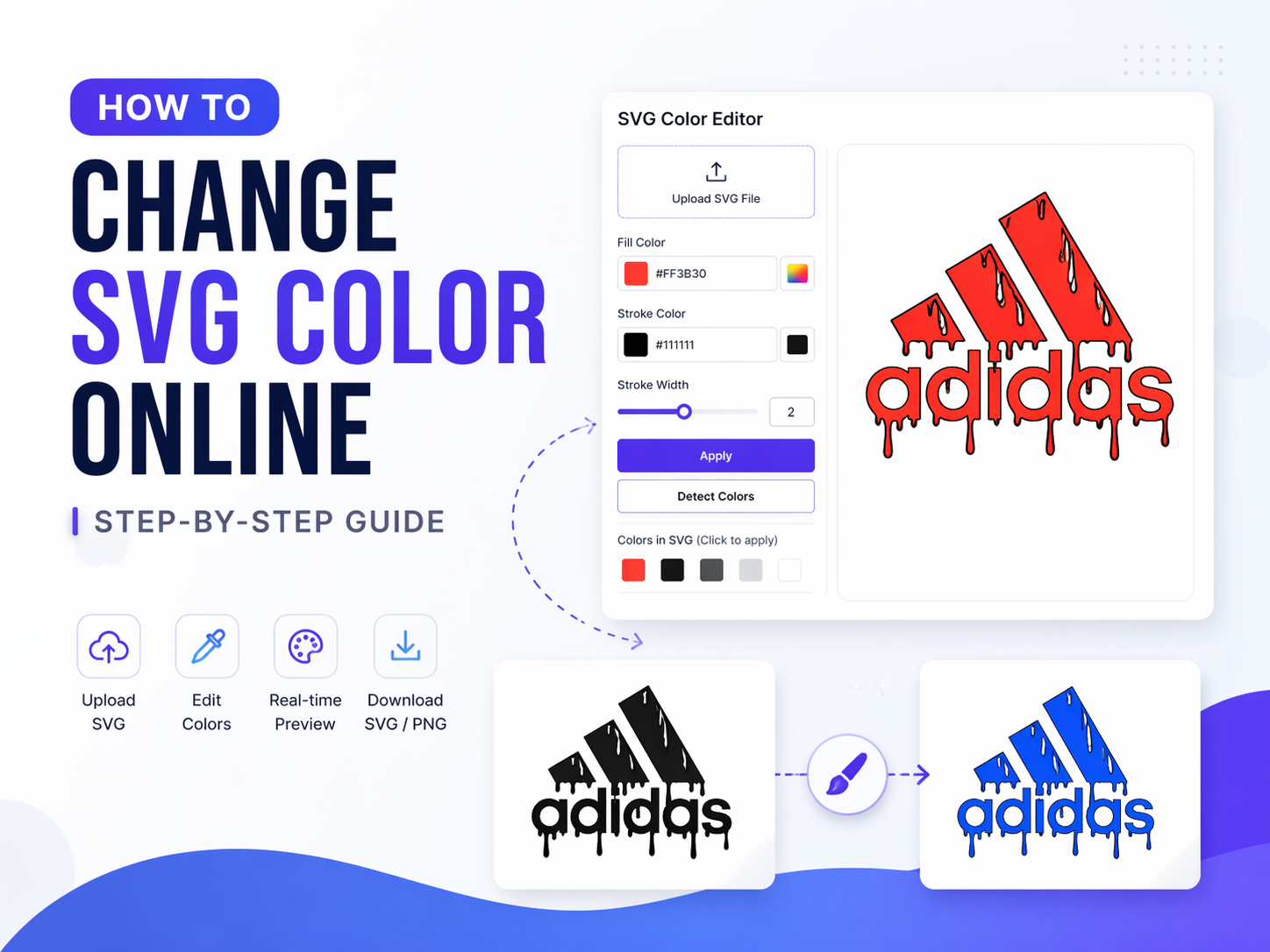
Learn how to easily change SVG colors without using Photoshop or Illustrator. This guide will show you simple methods to edit SVG fill and stroke colors directly in your browser.
🎯 Why Change SVG Colors?
SVG files are widely used because they are scalable and lightweight. Changing colors allows you to:
- Match your brand colors
- Customize icons and logos
- Create variations of designs
- Improve visual consistency
🛠 Method 1: Use Online SVG Color Editor (Recommended)
The easiest way is to use an online tool like our SVG Color Editor.
Steps:
- Upload your SVG file
- Click on any part of the image
- Choose a new fill or stroke color
- Adjust stroke width if needed
- Download the updated SVG or export as PNG
👉 Try it here: svg color editor tools
🎨 Method 2: Edit SVG Code Manually
You can also change colors by editing the SVG code.
Example:
<path fill="#000000" stroke="#111111" />
Change it to:
<path fill="#ff0000" stroke="#000000" />
⚠️ This method requires basic knowledge of SVG structure.
🔄 Convert SVG to PNG After Editing
After changing colors, you may want to export your SVG as PNG.
Benefits:
- Better compatibility
- Easy sharing
- Fixed resolution output
💡 Tips for Best Results
- Use hex colors for accuracy
- Keep stroke width proportional
- Avoid unnecessary SVG elements (clean file)
- Test on different backgrounds
🚀 Conclusion
Changing SVG colors is quick and easy using the right tools. Whether you edit manually or use an online editor, you can customize any SVG file in seconds.
Start editing now and create better visuals effortlessly.
Comments (0)